 BarShelf
Sensors
Hardware temperatures, fans and power draw from the SMC, with the Apple Silicon HID sensor plane as a fallback. Choose a temperature, any single sensor, power draw, fan speed, or fan load for the menu bar — or two of them — in °C or °F where applicable.
- Category
- System
- Type
- Workflow (no code)
- Requires
- Nothing beyond BarShelf
- Permissions
- system:
sensors - Menu bar
- Can show its value live in the menu bar
- Refresh
- Every 3 s while visible
- Source
- github.com/Open330/barshelf/tree/main/widgets/sensors
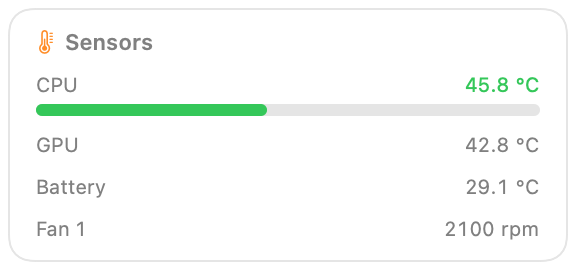
Hardware temperatures, fans, and power draw, read straight from the Mac — the kind of readings a system monitor like Stats shows, as a BarShelf widget.
- CPU / GPU / battery temperature in °C, with a health-colored CPU meter
- every fan the Mac reports, by name and RPM
- system total power draw in watts, when the Mac publishes it
- a live CPU temperature in the menu bar
Settings
| Setting | Choices | Effect |
|---|---|---|
| Menu bar shows | CPU / GPU / Battery / Hottest sensor / Power draw / Fan speed / Fan load, or any single sensor this Mac has | Which reading the menu bar label carries. The card always shows all of them. |
| Also show | Nothing, or any of the same readings | A second reading in the same item — pick Two metric rows in the menu bar layout to stack them. |
| CPU / GPU / battery reading | Average of its sensors / Hottest sensor | Whether a component shows the mean of its sensors or its hottest one. |
| Temperature unit | Celsius / Fahrenheit | Applies to the card and the menu bar. Fahrenheit labels say °F, so 123°F is never read as a Celsius figure. |
Want two readings on the bar at once? Duplicate the widget — BarShelf (Hub → Widgets → Duplicate) gives each copy its own settings and its own menu bar slot, so one can show CPU and the other the hottest sensor. Up to five promoted widgets are drawn.
The health colouring stays calibrated in Celsius whichever unit you pick — the thresholds are a property of the hardware, not of how you prefer to read it.
Setup
Nothing to configure. Install it and it reads the machine it runs on.
Installing it does not put anything on the menu bar. To show the temperature there, right-click the BarShelf icon and tick this widget under Menu Bar ▸ (or use the widget's Settings → Menu Bar).
Once it is on, it shares one status item with the BarShelf mark (✦ 21% · 46°) or takes an item of its own, and keeps refreshing on its 3-second interval even while the popup is closed. Turning on Pause When Closed in app settings freezes it, and the menu bar dims the frozen value rather than passing it off as live.
While the card is closed the widget reads only the sensor the menu bar is showing. Every SMC key is its own trip to the hardware, and a Mac publishes far more of them than this card displays — narrowing the sample takes a refresh from about 27 ms to about 4 ms, which matters at a 3-second cadence. Open the card and it reads everything again, including the full sensor list.
Permissions
permissions.system: ["sensors"] — nothing else. No commands are run, no files are read, and nothing leaves the machine. The readings come from AppleSMC over IOKit, with the Apple Silicon HID sensor plane as a fallback.
What your Mac actually reports
Every reading is optional, and the widget shows what it has rather than filling gaps with zeros:
| You see | It means |
|---|---|
— next to GPU or Battery | this Mac publishes no such sensor |
Fans — none | a fanless Mac (MacBook Air, most iPads-turned-Macs) |
| no watts in the header | no PSTR power key on this model |
| "No hardware sensors are readable on this Mac" | no sensor backend answered at all |
That last case is expected in two places: a sandboxed build (the Mac App Store variant has no SMC access) and a virtual machine. The widget says so instead of showing a plausible-looking 0 °C.
Sensor names differ per chip generation and Apple publishes no key dictionary, so the widget summarizes by key prefix — Tp*/Te* are CPU core dies, Tg* the GPU, TB* the battery. peak is the hottest of those summarized sensors.
Troubleshooting
Temperatures look lower than another monitor's. The CPU figure is the mean of the core die sensors, not the hottest one. Compare against peak in the tooltip.
The menu bar value is greyed out. The last successful reading is older than the widget's cadence allows — check whether Pause When Closed is on, or whether the widget shows an error in the popup.
Install
Included with BarShelf. Open the popover, go to the Gallery, and add it. BarShelf asks you to approve the permissions listed above first.
brew install --cask open330/tap/barshelf